
 Kendoshi
Few lines. Clear structure.
Kendoshi is project management for people who work visually.
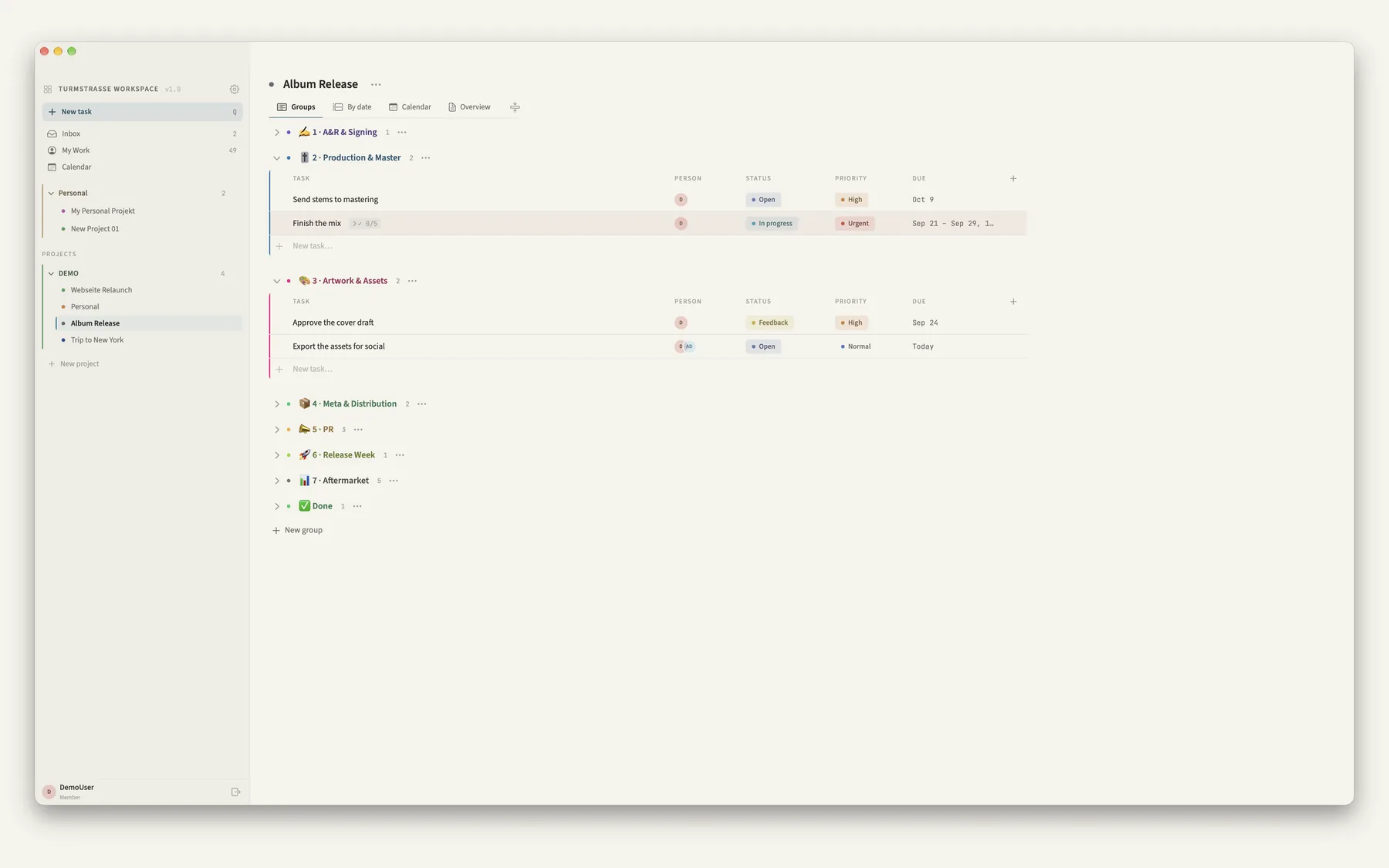
Projects as boards with groups, status chips and columns.
Tasks captured in a single line.
Your day in blocks instead of one endless list.
A calm interface, few lines, three themes.
For Mac, iPhone and iPad · One purchase on the App Store, no subscription · Download for Mac: Kendoshi Desktop, fourteen days in full · Solo in iCloud or with your own team server
An interface that doesn't interrupt. Even on bad days.
Kendoshi was built by someone with ADHD. That is why there are few lines, few frames and no colourful dashboards: edges instead of boxes, tinted chips instead of solid colour, full saturation only for a dot or a two-pixel edge. If it doesn't inform, it isn't there.
For years I adapted to the tool, never the other way round. One app had the entry line I loved but no board. A board tool had the overview, but every row looked like an emergency, and the bill ran per person, per month. Others wanted me to build a system before I was allowed to start. That is my experience, not a verdict on those programs.
Here you don't need to build a system to begin. One line in quick entry is enough. Kendoshi picks up the date, priority and project itself. Structure may grow later: folders, projects, groups, custom columns.
The app grew out of the daily work of a music project and an independent label. It is used there by the team every day, with real deadlines, not with sample data.
Kendoshi is not a medical application. The ADHD experience shapes the design; no therapeutic effect is claimed.
Kendoshi in five short films.
Half a minute each, with sound, in English, with subtitles you can switch on. First what Kendoshi is, then calendar, private life, colours and priorities.
The project lies open in front of you.
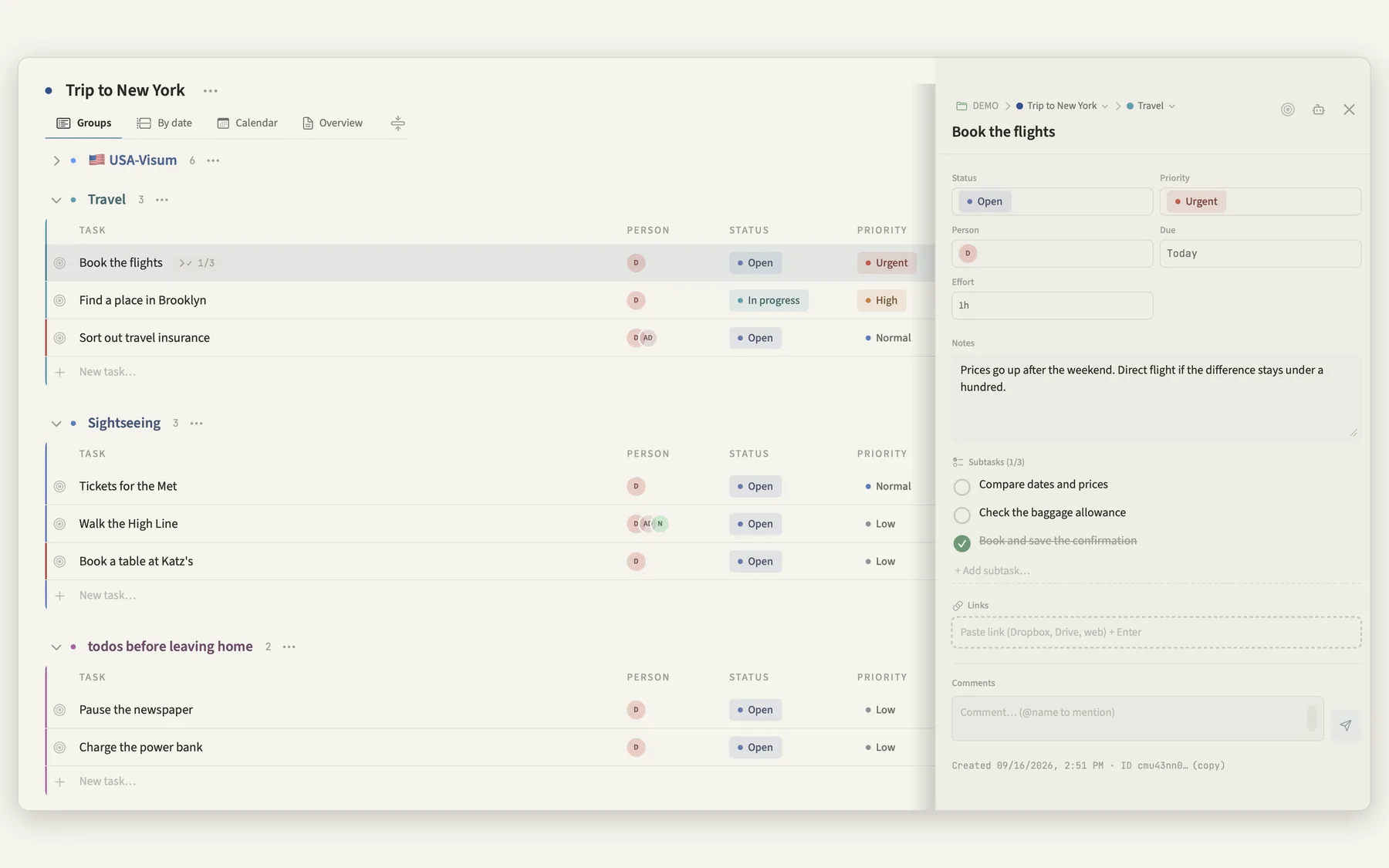
Folders, projects, groups, tasks. Status, priority, person, start, due date, plus custom columns for a link, text, number or checkbox. Drag rows and groups into place, duplicate groups and projects as templates.
Every level gets a colour that stays visible as a two-pixel edge on the table. You recognise a project before you read it.
“Finish mix tomorrow 3pm p1 #album every week” becomes a task with date, time, priority, project and recurrence. English and German are both recognised.
On the Mac it is also a floating panel on a keyboard shortcut, from any app. Without a project everything lands in the inbox; you can tidy up later.
Dictate the task and Kendoshi works out the rest. The dictation comes from Apple and works in any text field; what Kendoshi adds is the finished task.
One line. Fully captured.
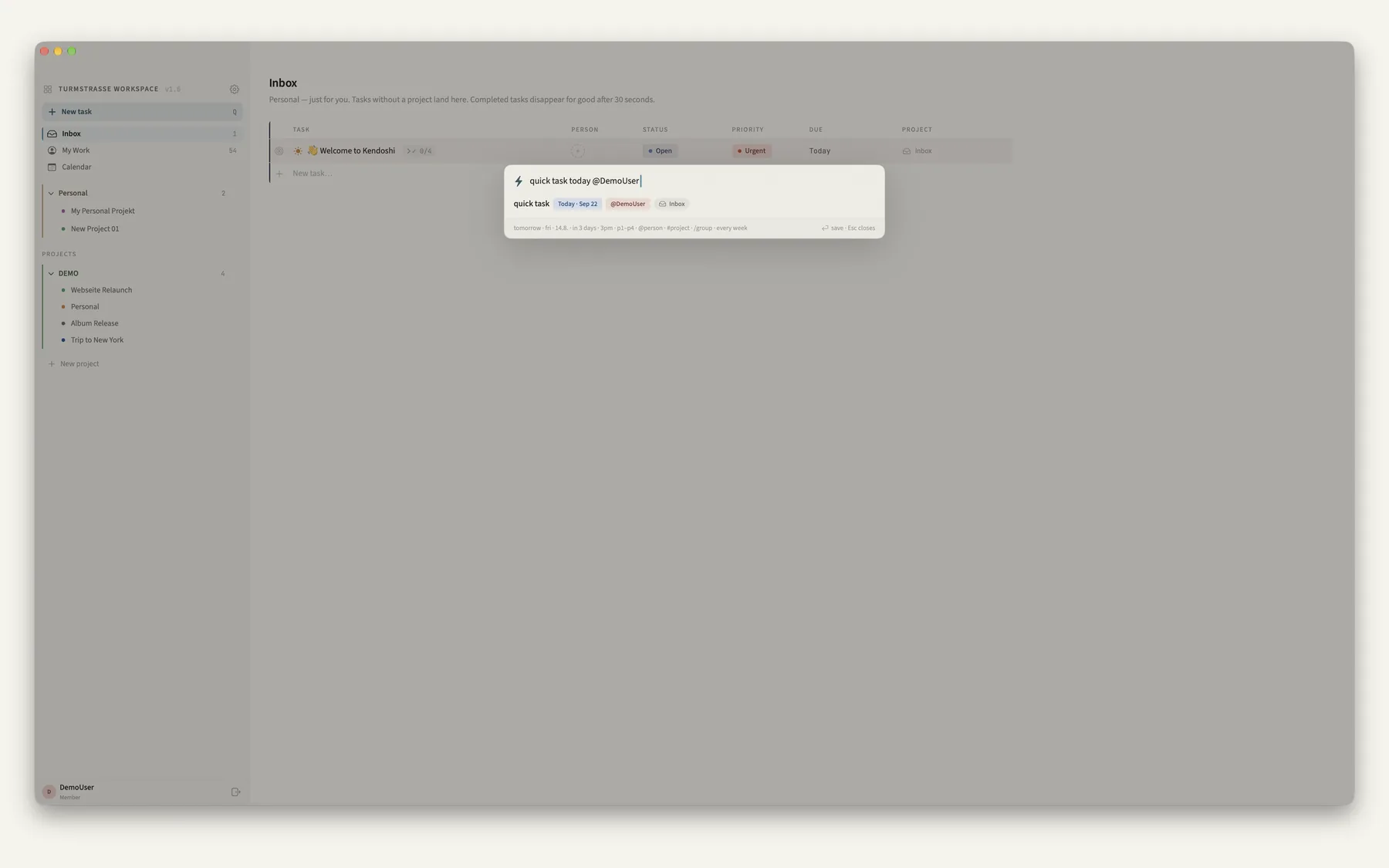
What the line understands.
Date
today · tomorrow · fri · 14 Aug · in 3 days · next week
Time
3pm · 15:00 · 9am · without a date it means today
Assignment
p1–p4 · @person · #project · /group
Recurrence
daily · every week · every 2 weeks · monthly
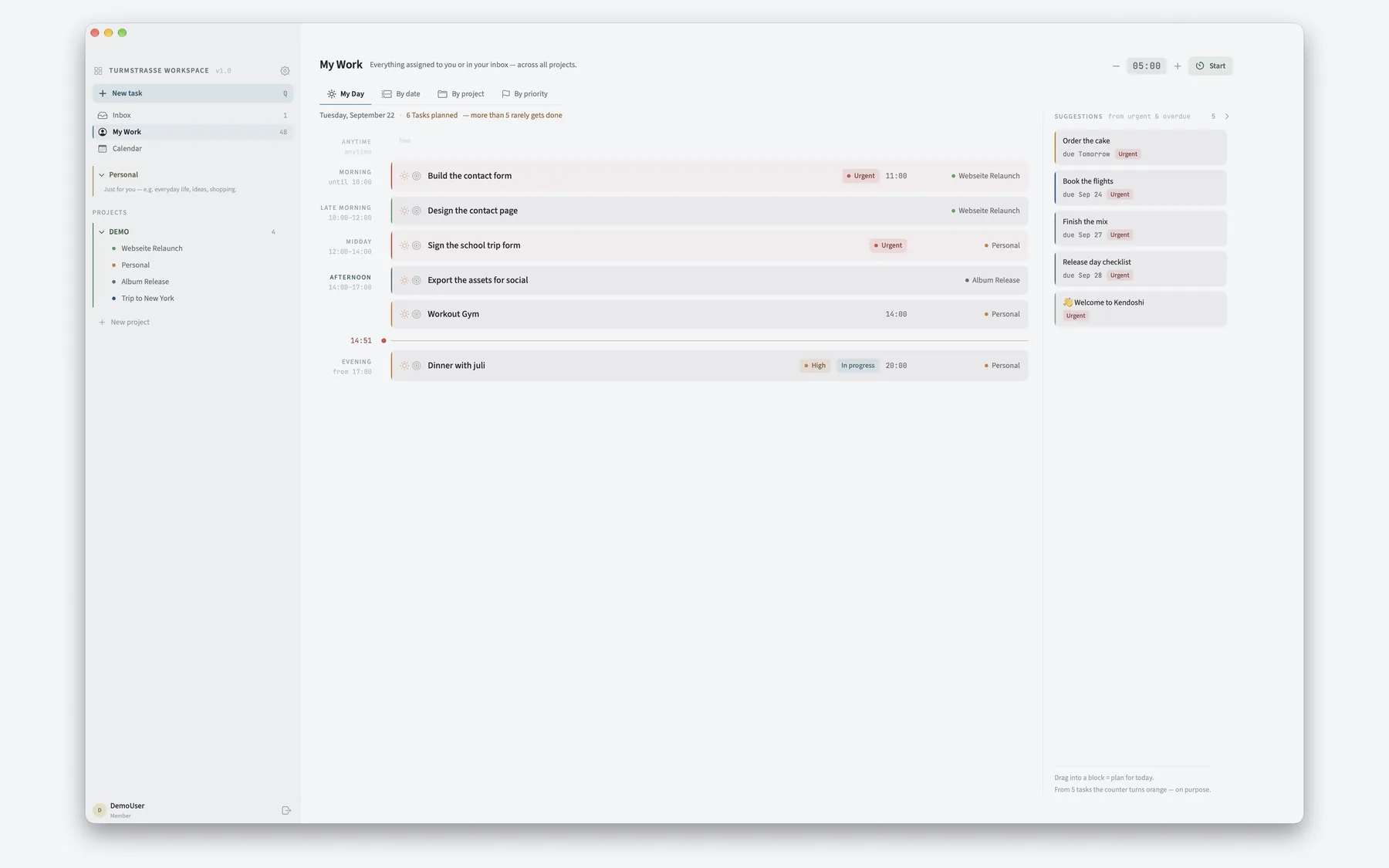
Your day in blocks.
My Work collects everything open, across projects, sorted by day, date, project or priority. My Day lays the day out in six blocks from morning to evening and suggests what is urgent or overdue.
From five planned tasks the counter turns orange. On purpose: a due date is a deadline, a day block is an intention, and dragging never changes the date.
So the morning doesn't start with forty equally loud items, but with a day where the choice has already been made.
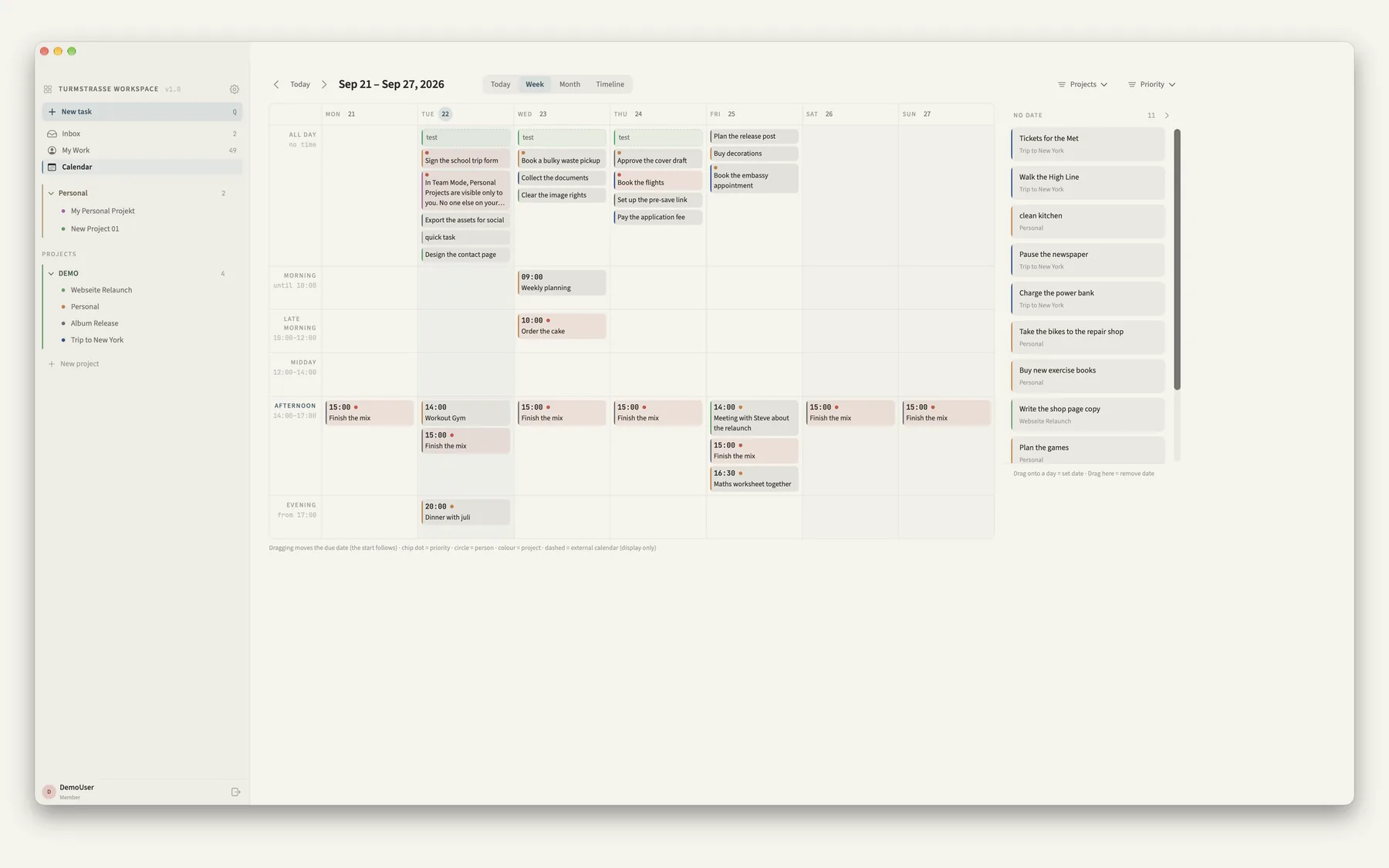
Move tasks directly in the calendar. The start date moves with them. Show events from Apple Calendar, subscribe to external calendars via ICS link (dashed, display only).
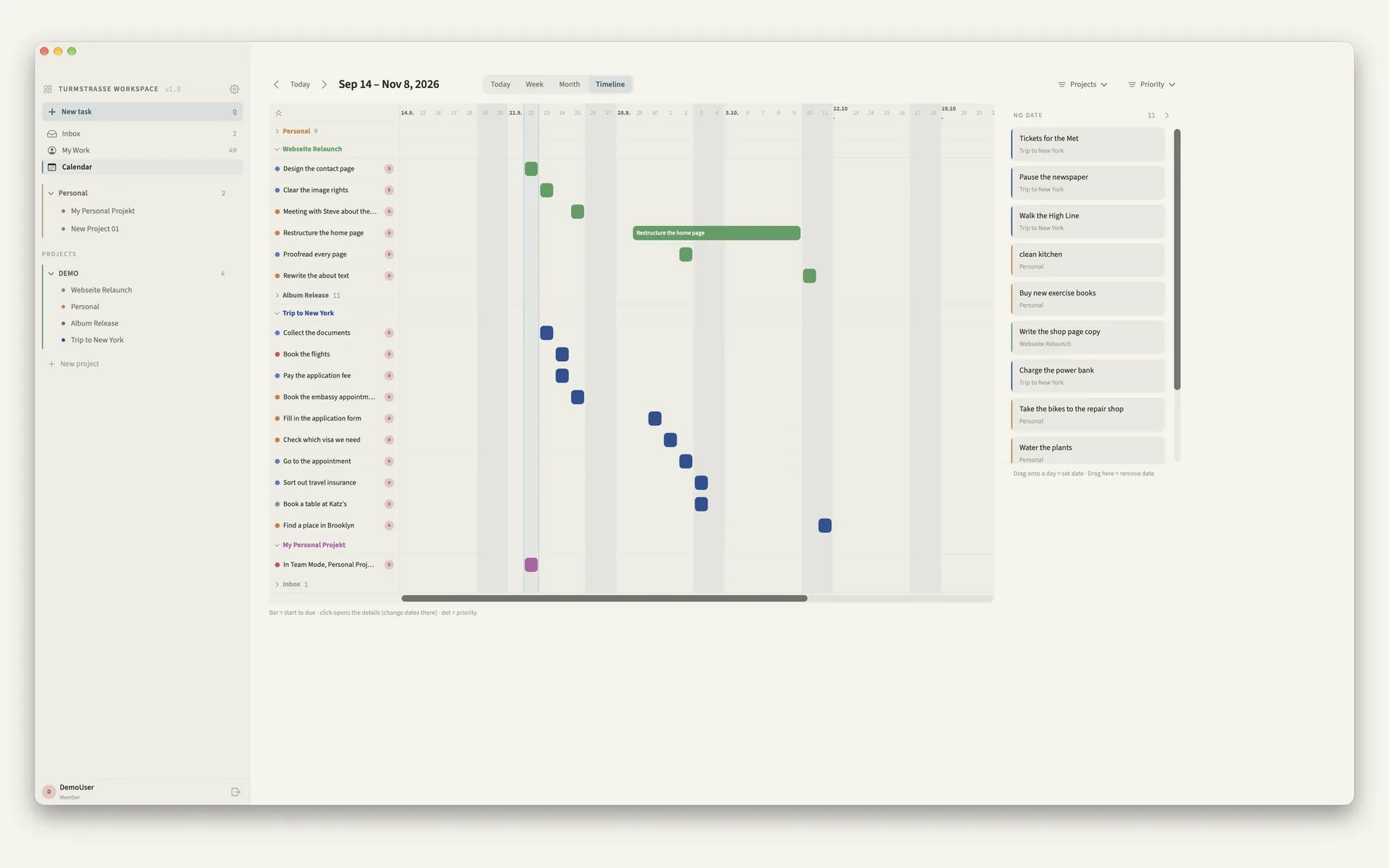
The timeline shows start to due date as a bar across weeks, grouped by project or group.
Day, week, month, span.
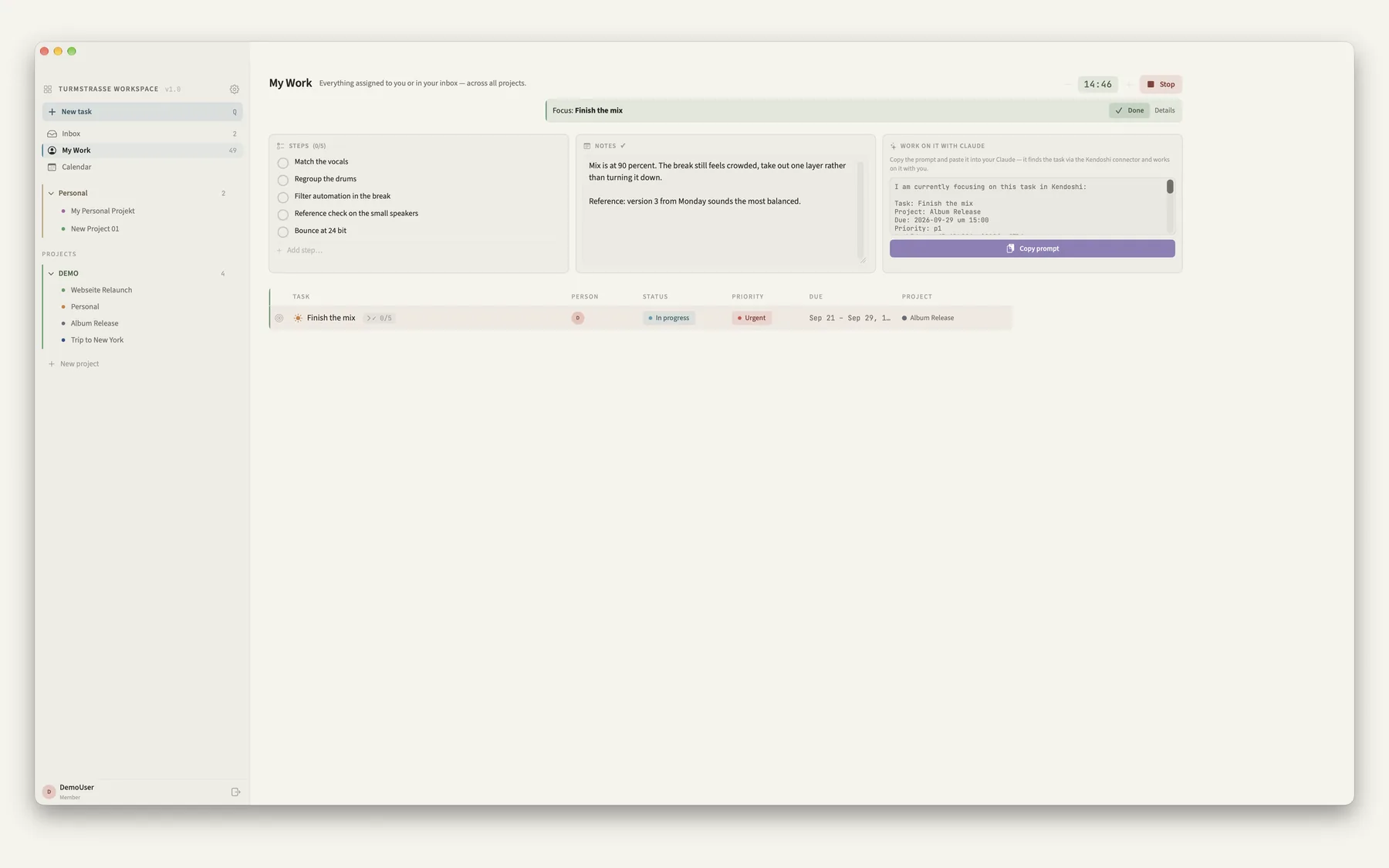
One task. One timer. One state.
Focus hides everything except this one task, its steps and its notes. Pomodoro from 5 to 60 minutes, a notification at the end, a reminder 30 minutes before tasks with a time.
No AI built in. Your AI may dock on.
Kendoshi contains no language model and sends nothing to a provider on its own. On the Mac, in solo mode, you can switch on a local access point through which your own AI client reads, creates and updates tasks.
That is what makes this workflow possible: you throw a raw thought into the inbox, and the sorting and filing happen later, not by hand. Tasks that come up in conversation with your AI end up in the project instead of in a chat log nobody opens again.
The access point is off by default, reachable only on your own machine, requires a token you generate yourself, and runs only while the app is open.
Every task also has an AI button: break it down into steps, clarify it, or find a first step to get started. Without a key, Kendoshi builds the prompt and you send it to Claude or any other AI yourself. With your own API key, Kendoshi asks before the first request and then shows the suggestion, which you apply with one click, for example as subtasks.
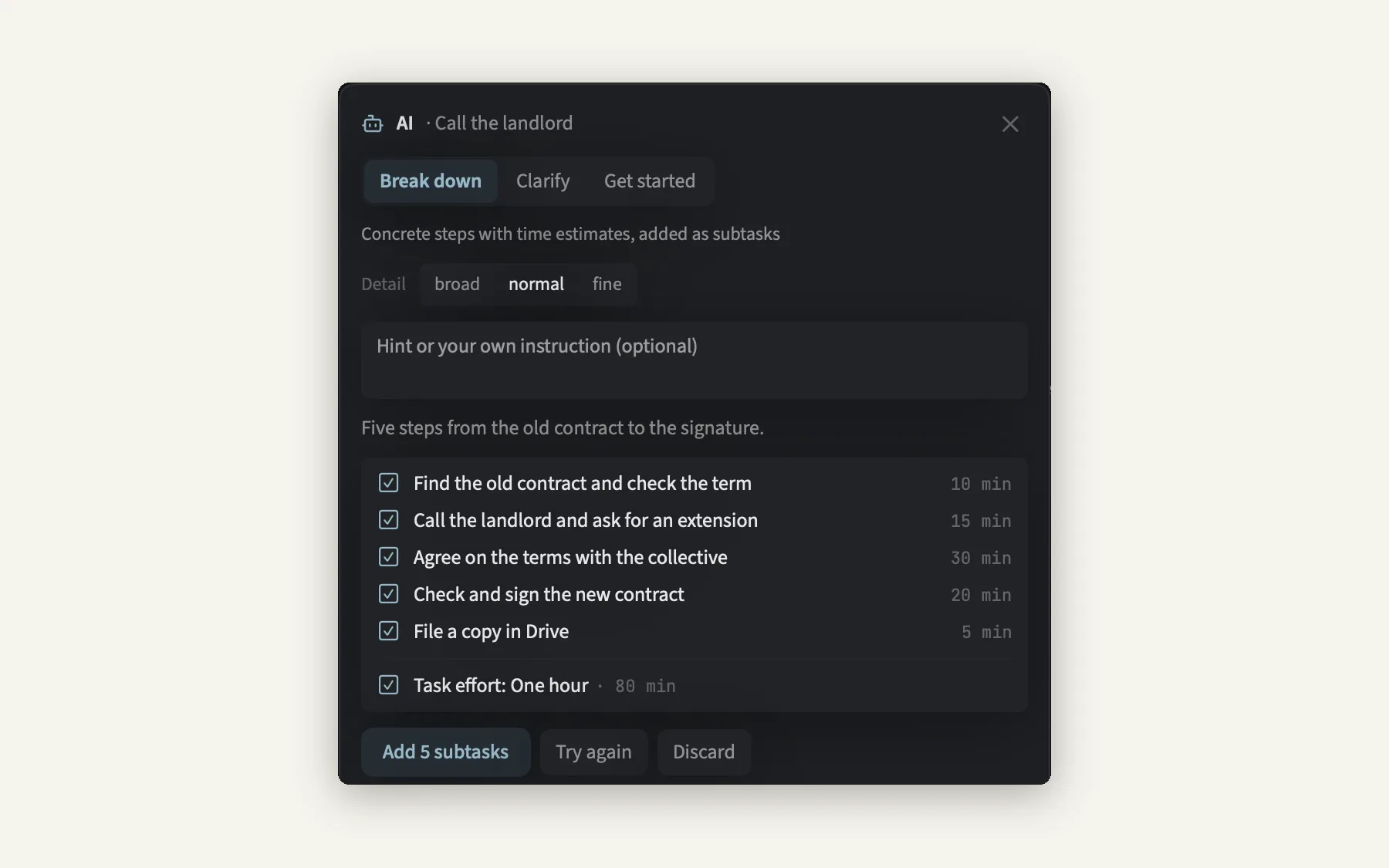
What your AI client passes on afterwards is decided by that client, not by Kendoshi
Optional. On your own server.
If you run your own Kendoshi server, you connect the app to your team: shared projects, owners and collaborators, comments with mentions, a team wiki. None of it is needed to work on your own, and there is no bill per person, per month.
Team mode is optional · There is no hosted service from the developer
No account with the developer.
Everything lives in the private iCloud database of your Apple account and syncs via CloudKit between Mac, iPhone and iPad. No tracking, no ads, no sign-up with us.
You export a backup as a file. Deleted items stay in the archive for 30 days and can be brought back.
Good to know.
Do I need an account?
No. Kendoshi works with the iCloud of your Apple account. There is no account with the developer. Only the optional team mode requires a sign-in, on your own server.
Subscription or one-time purchase?
A one-time purchase, no subscription. Product editions and prices are listed in the store.
Does everything work the same on every device?
The data is the same everywhere, the interface is not. Boards with custom columns, the timeline and the floating entry panel belong to the Mac; on the iPhone the focus is on planning the day.
What happens to completed tasks?
Inside a project they move to the “Done” group after 30 seconds and stay there as a record. In the inbox, checked tasks are deleted permanently after 30 seconds. Anything deleted from projects stays in the archive for 30 days.
Is team mode mandatory?
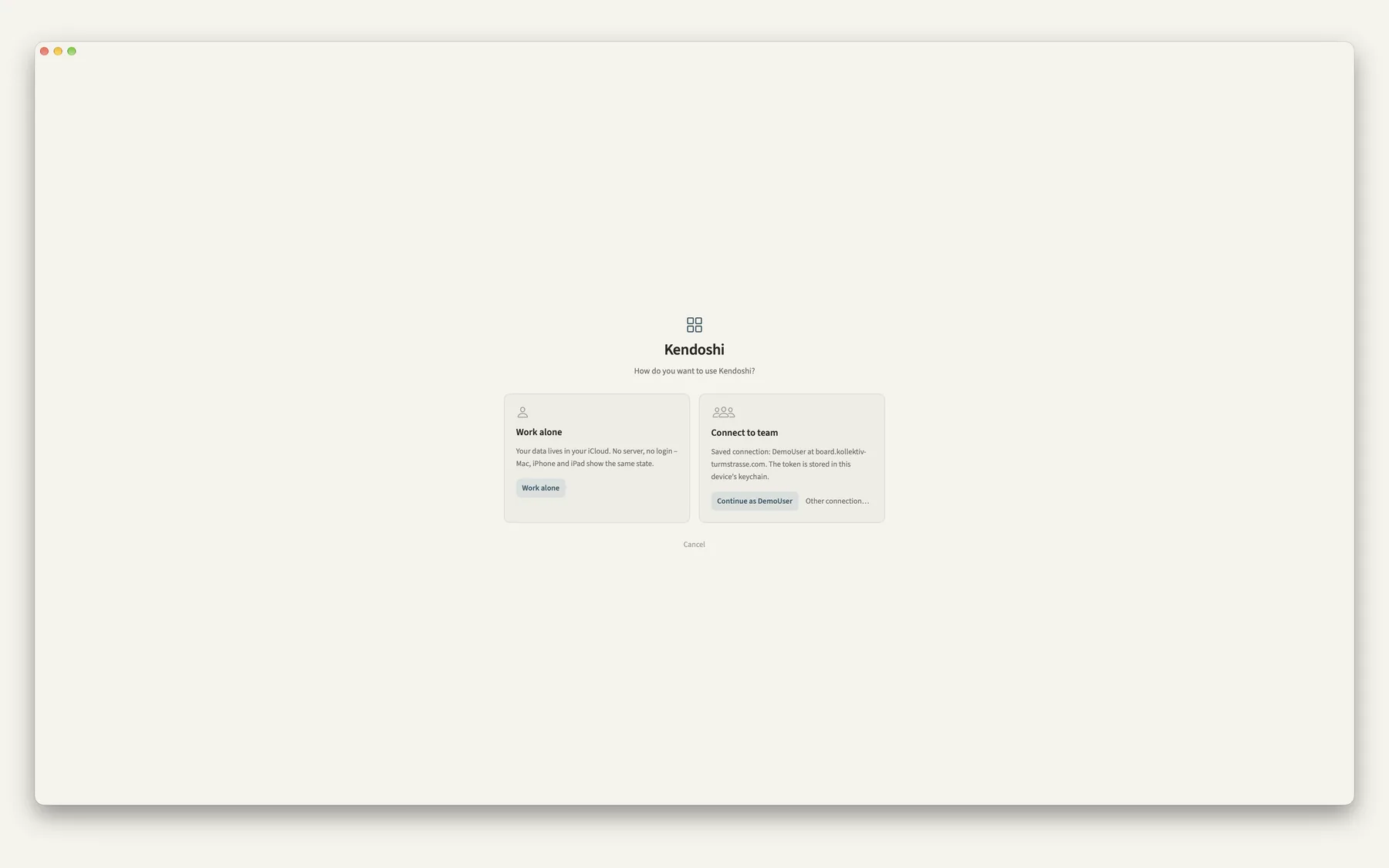
No. “Work alone” is the default. Team mode requires a Kendoshi server you run yourself and is not needed to use the app.
Is AI built in?
No. Kendoshi contains no language model. On the Mac you can switch on a local access point so your own AI client can help. Off by default, reachable only on your own machine.
One line is enough.
Write down what is due today. Kendoshi works out the rest: date, priority, project. You may build structure later.
All images show real interfaces with fictional sample data. Kendoshi is not a medical application.