
 Kendoshi
Everything the day has to carry.
Five chapters: the structure projects live in.
The ways tasks get in and get a date.
The mode you actually work in.
Everything you can bend to your own way of working.
And the colour the whole thing stands in.
Feature set differs per device · Custom board columns, timeline and the entry panel belong to the Mac
Four levels. No setup required.
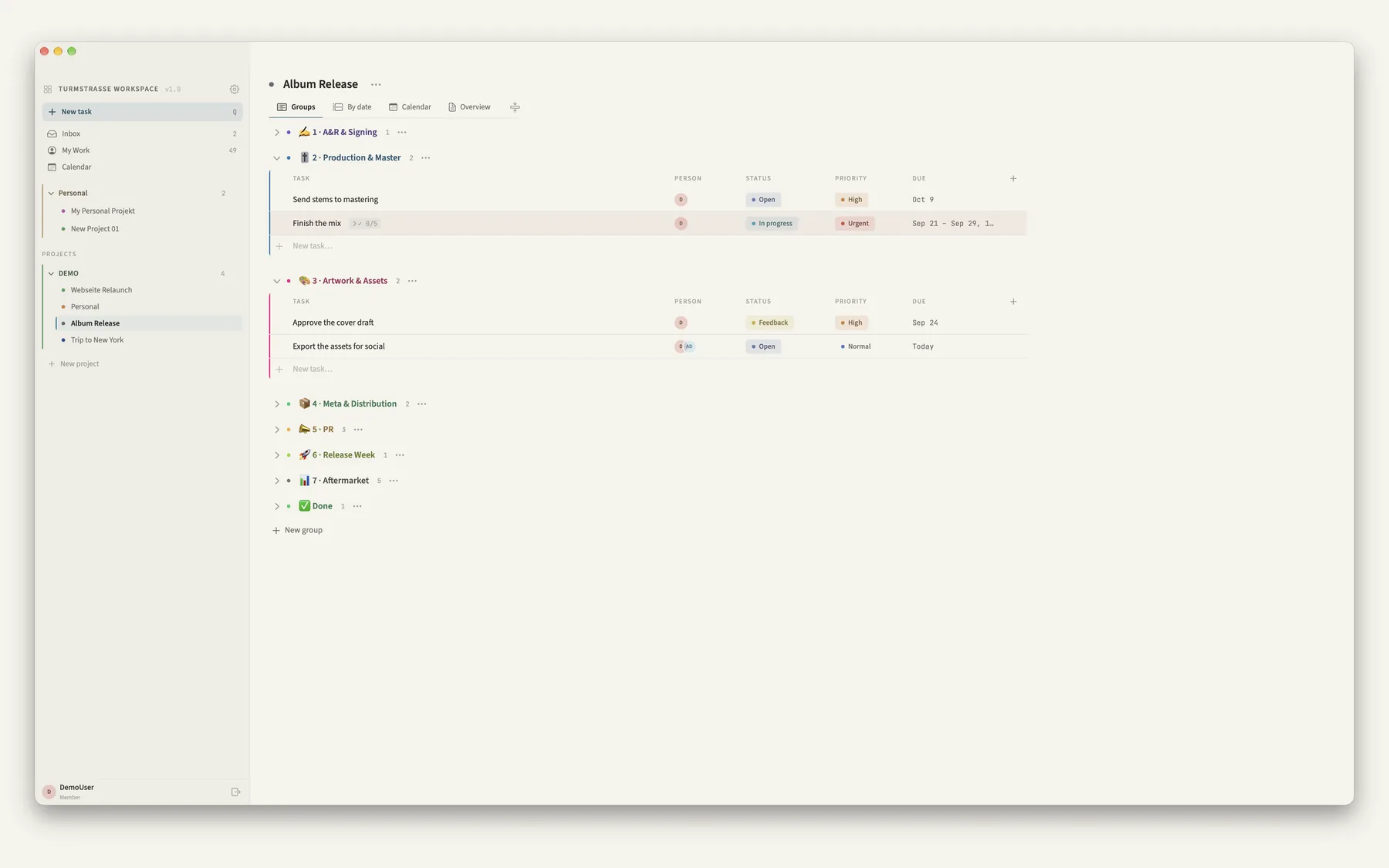
Folders hold projects, projects hold groups, groups hold tasks, tasks have steps. Every level gets a colour that stays visible as a two-pixel edge on the table.
The board view has four tabs: Groups, By date, Calendar and Overview. Overview is a project description with formatted text. Personal projects live in your own area, which nobody else sees.
Custom columns
Link, text, number or checkbox – added per group. Links recognise Dropbox, Google Drive, Apple Mail and the web.
Templates
Duplicate groups and projects: structure and tasks stay, status and dates start fresh.
Done group
Checked items move down after 30 seconds and stay there as a record. Reopening brings them back.
Archive
Deleted tasks, groups, projects and folders stay recoverable for 30 days, each with its date.
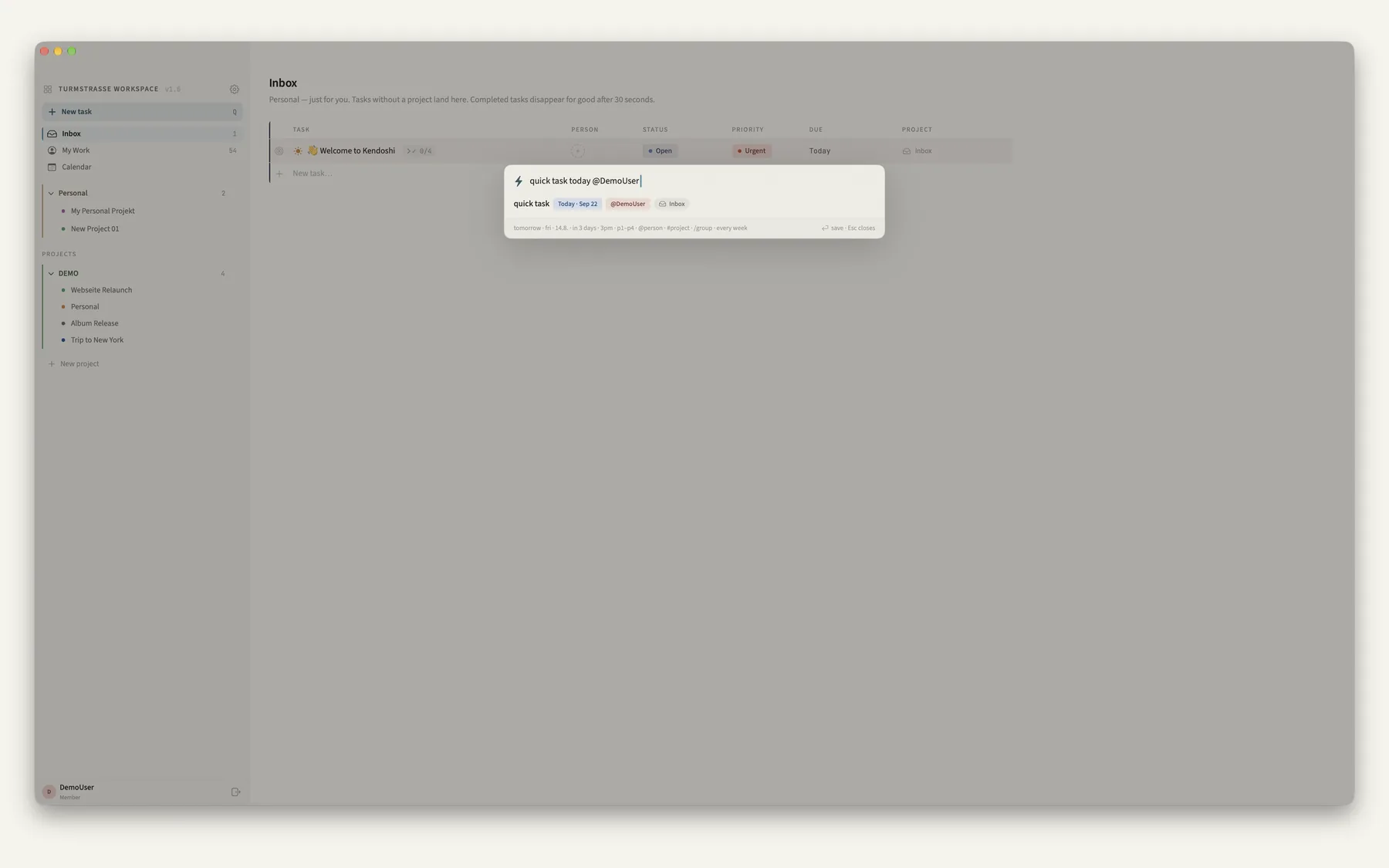
Quick entry understands date, time, priority, person, project, group and recurrence in one line. Whatever it doesn't recognise stays part of the title.
Without a project everything lands in the inbox. From there you move it later, or leave it until the day has room.
From a thought to a date.
Recurring
Daily, weekly on chosen days, every two weeks or monthly. Completing one creates the next instance – with its steps, fresh and open.
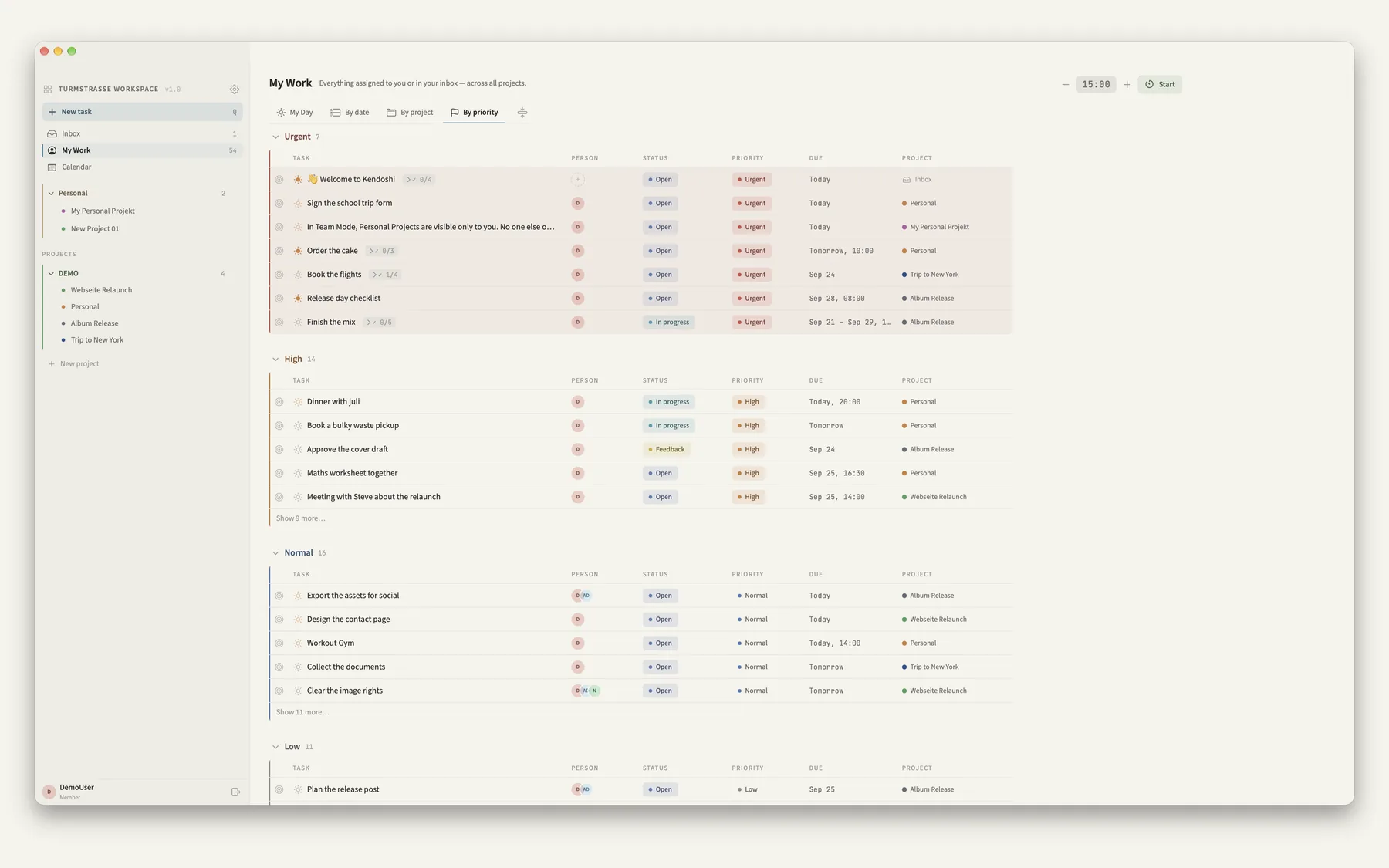
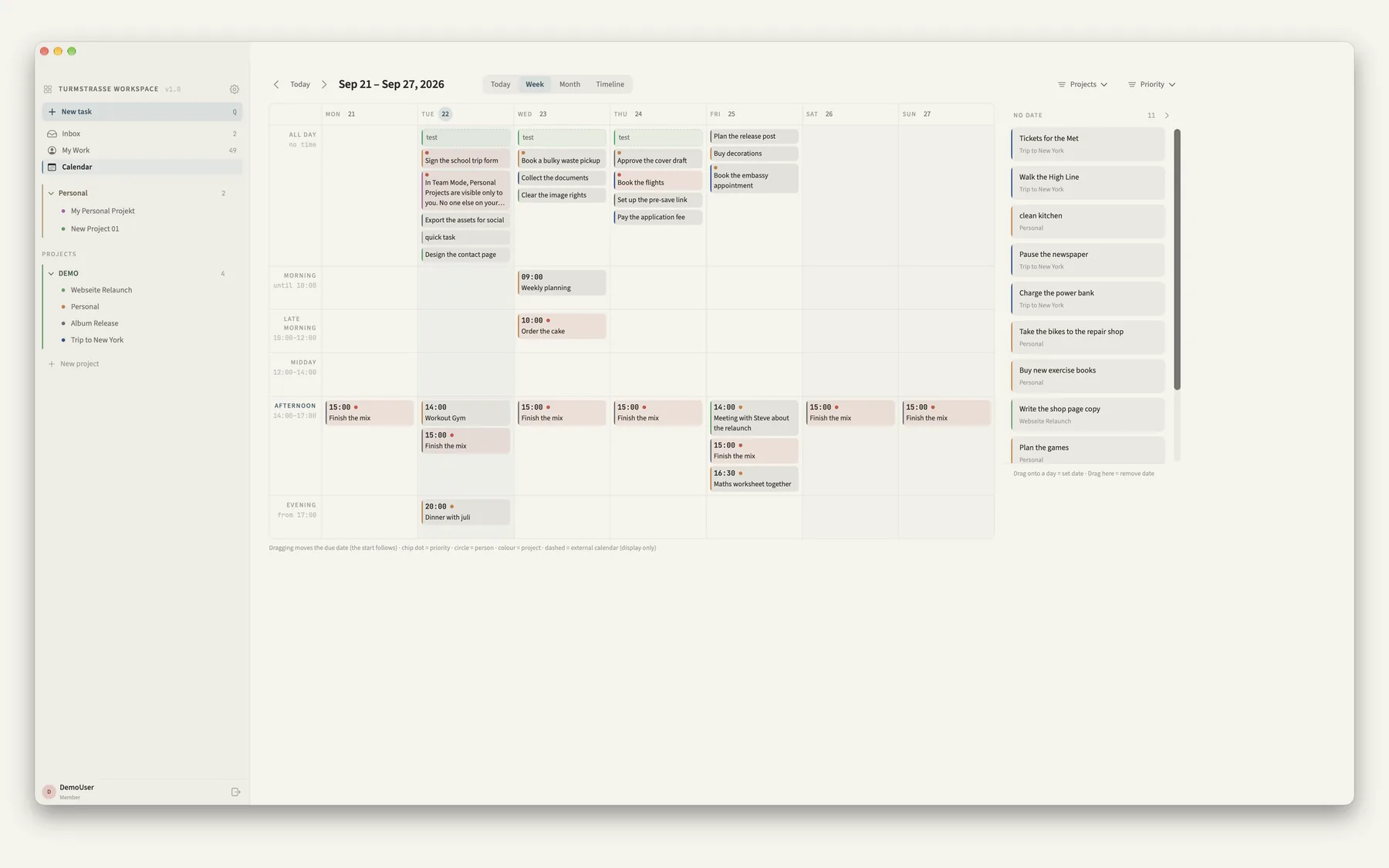
By date
Overdue, Today, This week, Next week, Later, No date – the same sections inside a project and in My Work.
External events
Show Apple Calendar, subscribe to ICS feeds. Shown dashed, display only, optionally all-day entries only.
Reminders
For tasks with a time, 30 minutes before. The dock icon shows what is still open today.
One thing after the other.
Focus mode shows a single task: its steps, a notes field with autosave and the timer. A notification at the end, nothing else. Like an open folder on your desk, and everything else is gone.
The detail panel holds status, priority, person, due date and effort as fields, with formatted notes, steps, links and, in a team, comments below. ↑ and ↓ move to the next task without closing the panel.
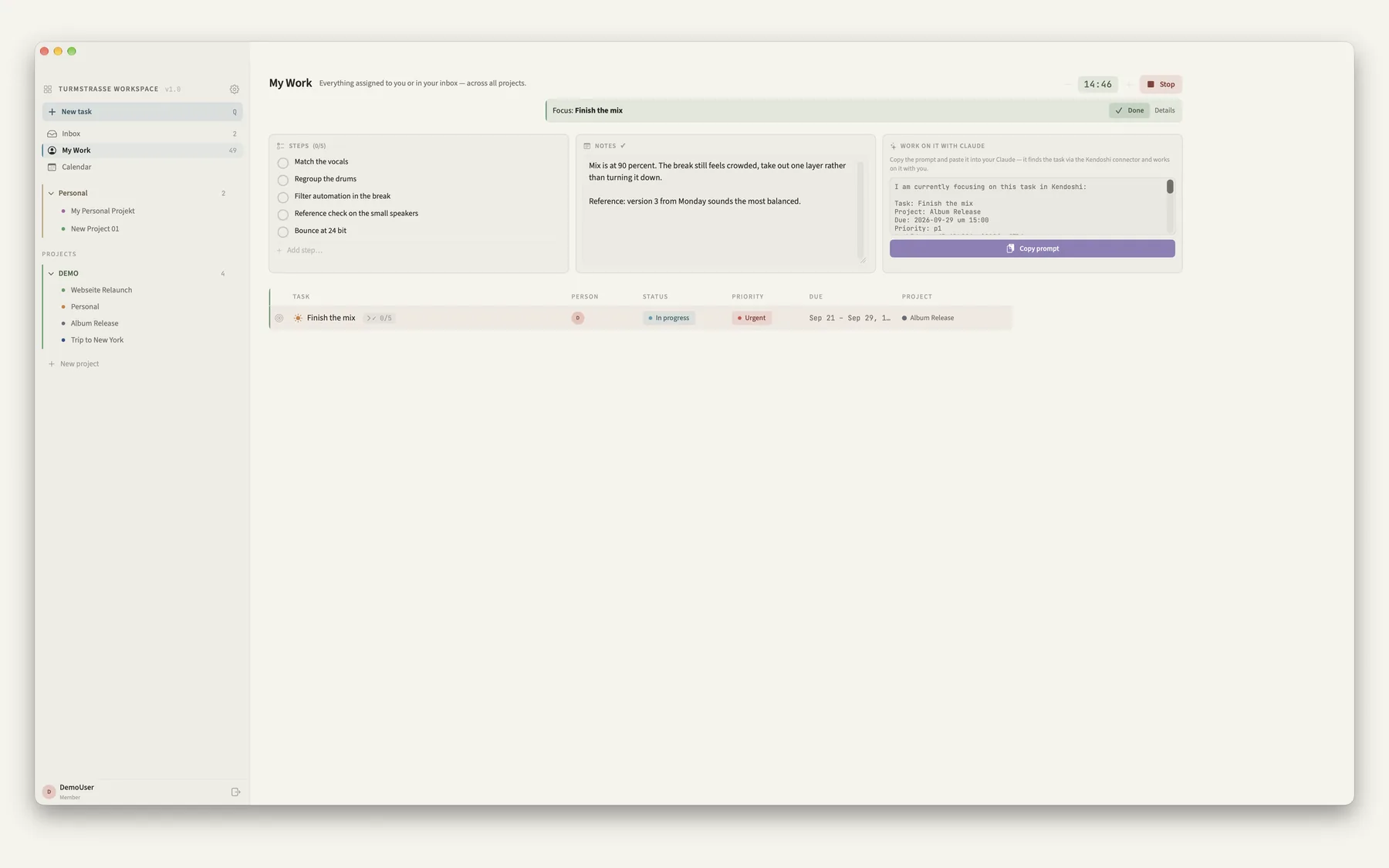
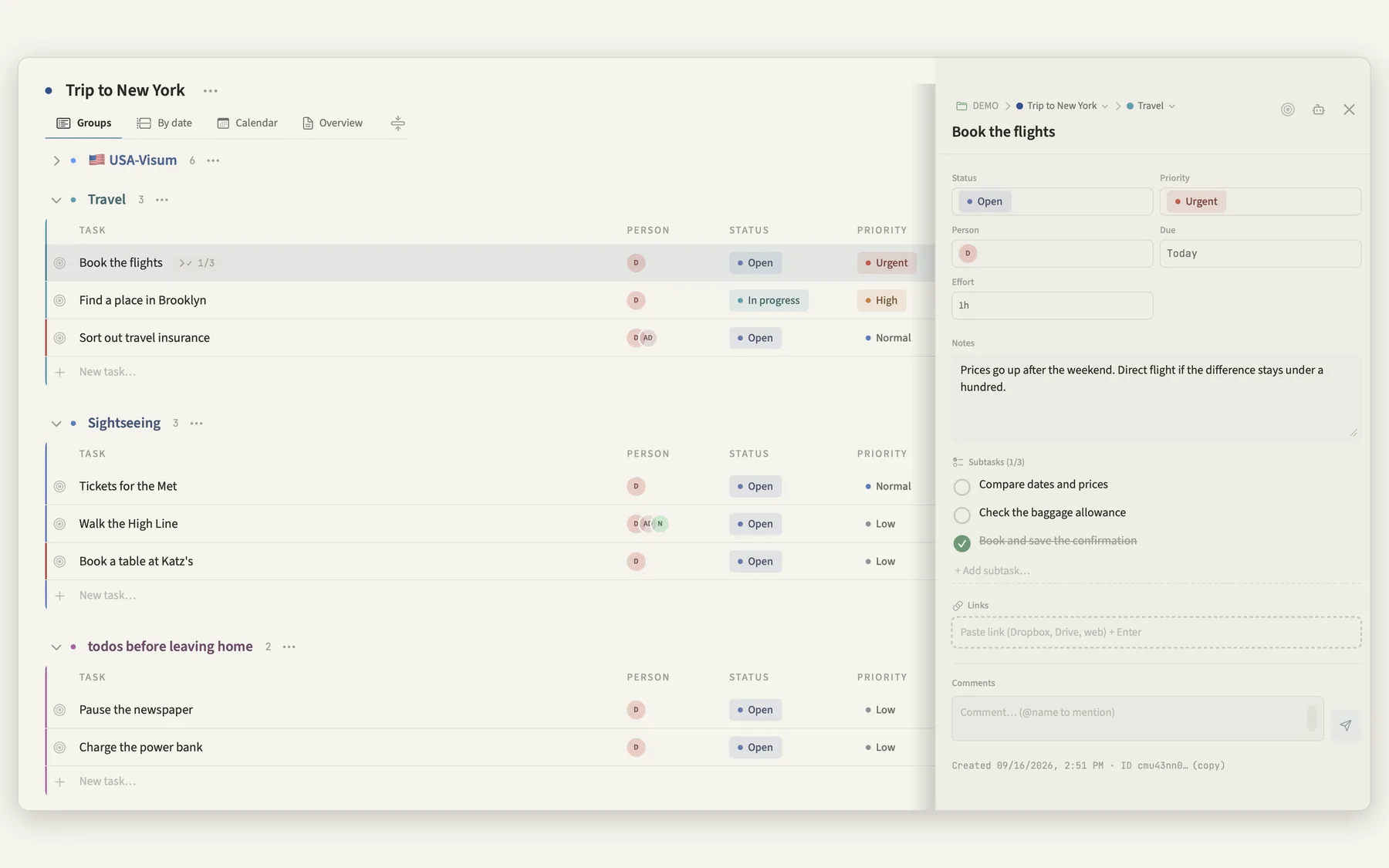
Timer 5–60 minutes · Effort: 15 minutes, 1 hour, half a day, a full day
Three themes – Light, Dark, Paper. Two densities: Comfort for taller rows, Compact for more tasks at a glance.
If you want your own colours, you set background, text and accent yourself; the app calculates every shade from those, with a contrast check.
Calm or dense. You decide.
Language
Interface in English or German, switchable at any time. Quick entry understands both.
Columns
Drag widths at the header; the setting is remembered per project. Groups collapse one by one or all at once.
Colours
24 matched tones for projects, folders and groups. Chips stay tinted, full saturation is reserved for dots and edges.
Data
Export a backup as a file and read it back in. Subscribe to calendar feeds per project.
Same interface, your colour.
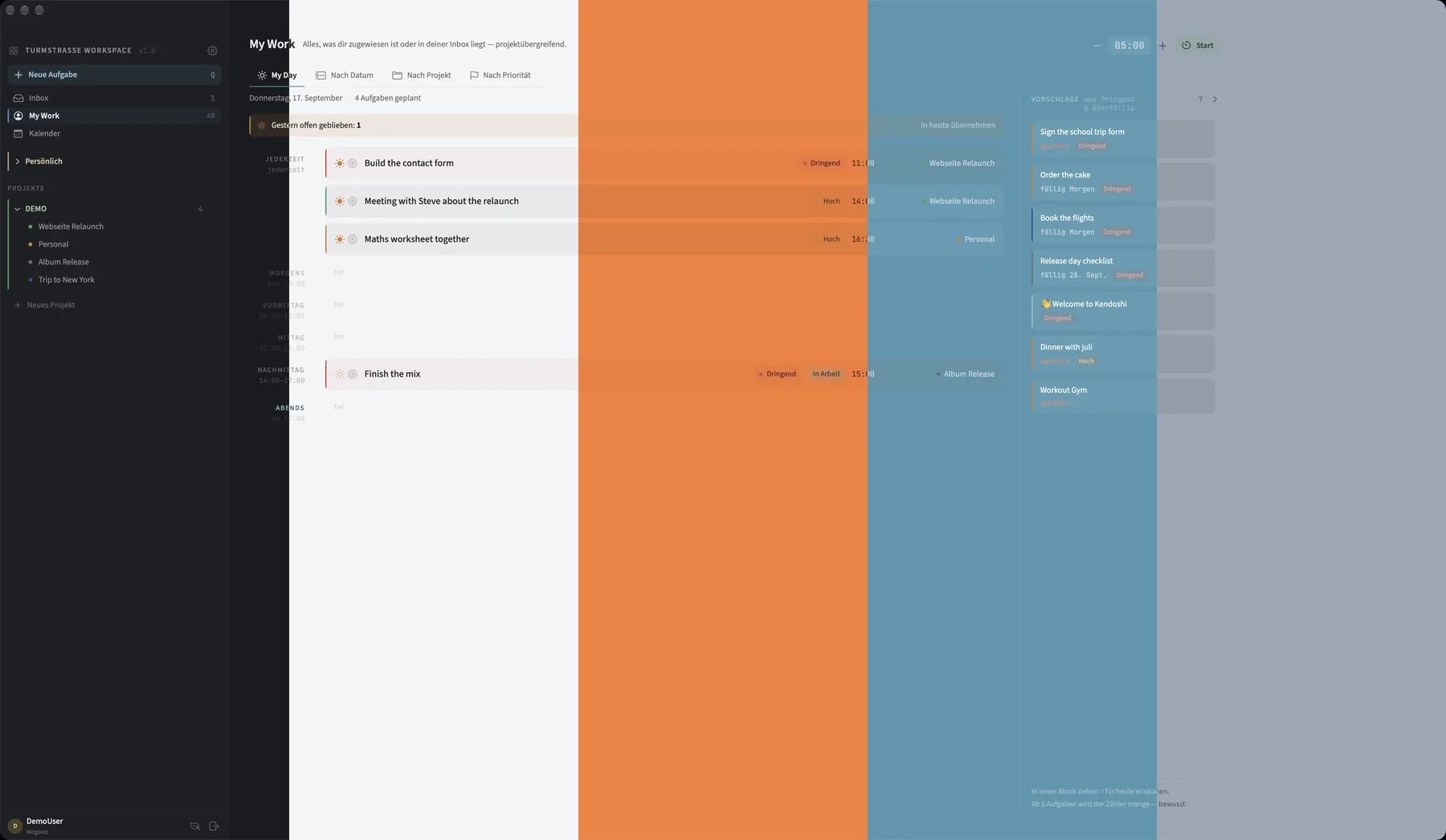
Kendoshi ships with three themes: Light, Dark and Paper. If that is not enough, change it to whatever colour you want. You set background, text and accents yourself in the colour lab, and the app works out every shade from those, checking the contrast as it goes.
The picture shows five examples on the same screen, laid side by side. The interface runs straight across from left to right, the colour changes with every band. These are not presets, just five out of any number.
None of it moves anything. Same columns, same rows, same sidebar.
What's inside, listed.
Archive
Deleted items stay recoverable for 30 days – tasks, groups, projects, folders, each with its date.
Effort
An estimate in four steps: 15 minutes, one hour, half a day, a full day or more.
Backup
Export as a file, started deliberately. On the Mac there are also automatic backups before database changes.
Inbox
Tasks without a project. Checked items disappear here permanently after 30 seconds.
Calendar feeds
Subscribe to your own tasks as an ICS link in Apple or Google Calendar – one feed per project, so the colours are right.
AI access
A local access point on the Mac through which your own AI client reads and creates tasks. Reachable only on your machine, its own token, off by default.
Mail as a task
Drag a message from Apple Mail onto a group, the inbox or a day block – the subject becomes the title, the mail stays linked.
Steps
Subtasks with a counter on the row, expandable directly in the table.
Timeline
Bars from start to due date across weeks, grouped by project or group.
Suggestions
On the right in My Day: everything urgent and overdue that isn't in the day yet. Drag it in to plan it.
Extra columns
Link, text, number, checkbox – per group. Values survive moves inside the project.
Carry on where you actually work.
The Mac carries the full set. On iPhone and iPad what counts is today.